Webona - IT Solutions WordPress Documentation
Hello! Thank you for purchasing!
Created: 18/05/2022 By: GarantiwebtGetting Started
Thank you for purchasing the Webona - IT Solutions WordPress Theme!
It's great that you choose Webona for your website, you will never be disappointed! Before you begin, please make sure to always review these documents. We provide you with all the details you need to use Webona WordPress. Webona WordPress can only be used with WordPress and even if you do not have WordPress installed, we provide all the files with it.
If you cannot find your answer in our documentation, we recommend that you contact us via the support system using your site's CPanel (FTP) and WordPress administrator information.
Thanks, we hope you enjoy using Webona WordPress!
WordPress Information
To install this theme, you need a running version of WordPress installed, or if you need help installing all of WordPress, you can activate your site without too much work using the sites and wordpress-all-system files below.
Theme Requirements
You must accept the following requirements.
- WordPress 4.0 or higher.
- PHP 5.6 or higher.
- MySQL 5 or higher.
- Memory Limit 128M or higher.
- Check to ensure that your web host has the minimum requirements to run WordPress.
- Always make sure they are running the latest version of WordPress.
- You can download the latest release of WordPress from official WordPress website.
- Always create secure passwords for FTP and Database.
Recommended PHP Configuration Limits
- max_execution_time 600
- memory_limit 128M
- max_input_vars 2000
- post_max_size 32M
- upload_max_filesize 32M
Theme Setup & Demo Import Video
Theme Installation & One Click Demo Import
This method requires a working version of WordPress already installed.
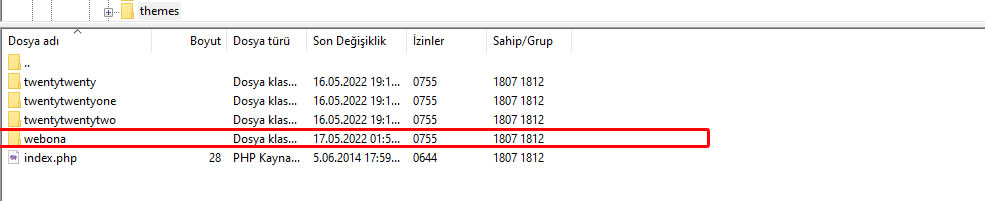
- Open the file you purchased. And enter the Theme folder. You will see the webona file. Connect to your FTP server and navigate to the folder
, where your WordPress is installed. Go to wp-content/themes/ and upload the webona folder (path should look like: wp-content/themes/webona ). - Once Webona is automatically installed after installation, open the wordpress admin panel (eg www.yourdomain.com/wp-admin/) and go to
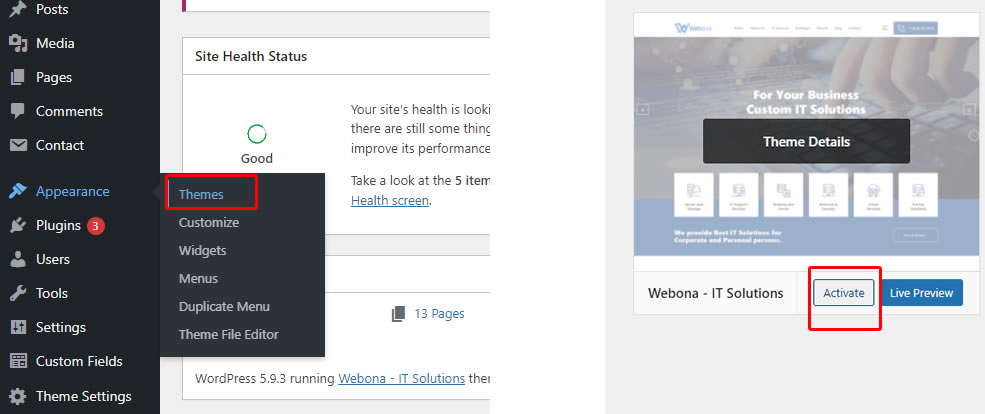
Appearance > Themes in the admin sidebar. Activate the webona theme. - After activating the theme, the required plugins area will come. If you do not install them, you will not be able to transfer the demo correctly. Install and activate them all.
- Now you can transfer the demo. First of all, enter the Appearance > Import Demo Data page from your admin panel and click the Import demo data button to load the demo. Thus, all pages, texts, and menus will appear. The homepage setting and menu settings will be assigned. You will only need to tick the mobile menu from the menus.
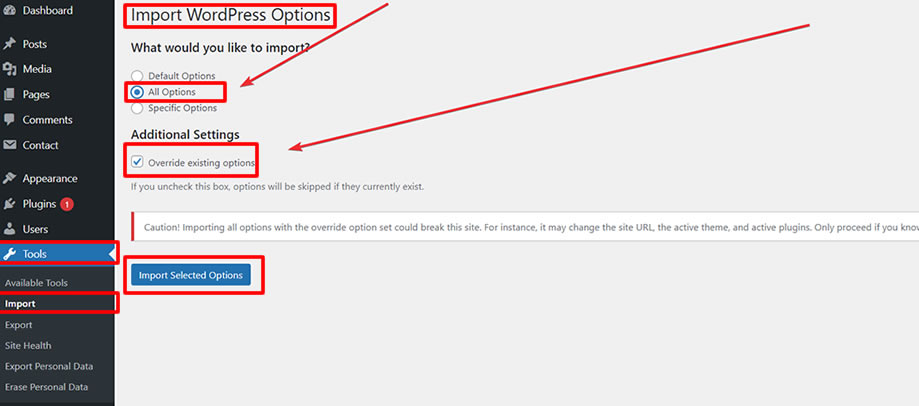
- Finally, you will need to import the theme setting json file. If you do not import this json file the demo will not work correctly. From your Wp Admin panel, click on Tools > Import > Options Import. And put the Resources/demo-tada/options.json file here and select the All option to install it. That's all!!!
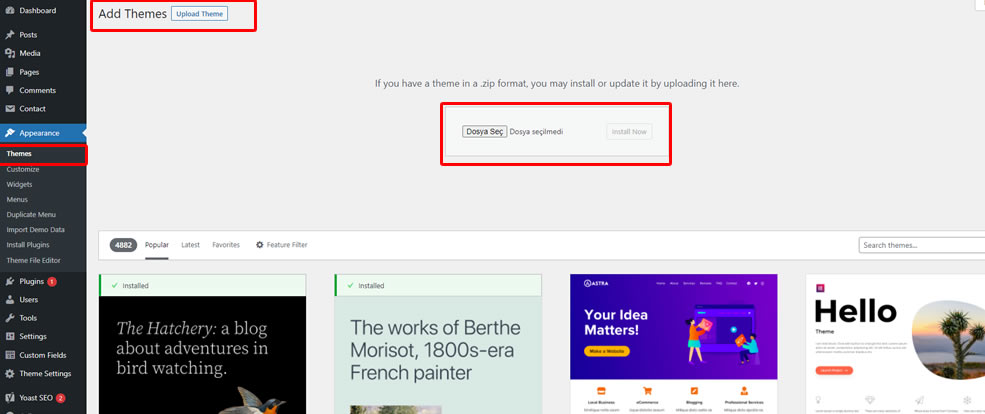
or upload the file from wp-admin panel. Upload the theme/webona.zip here

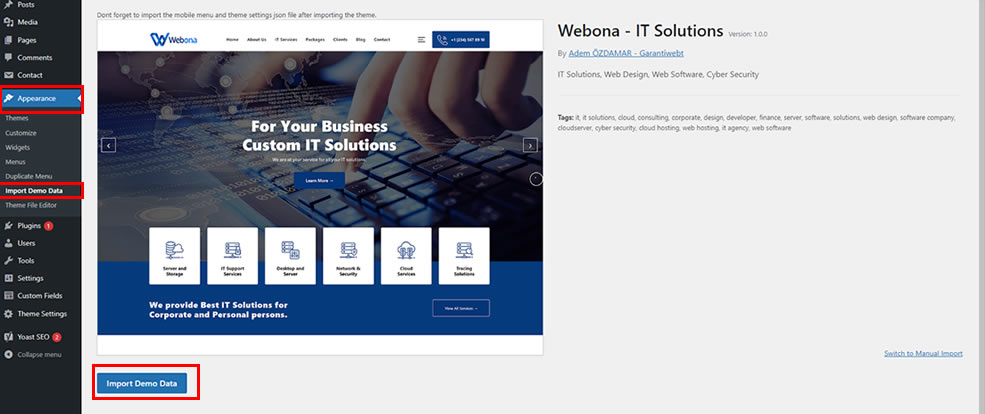
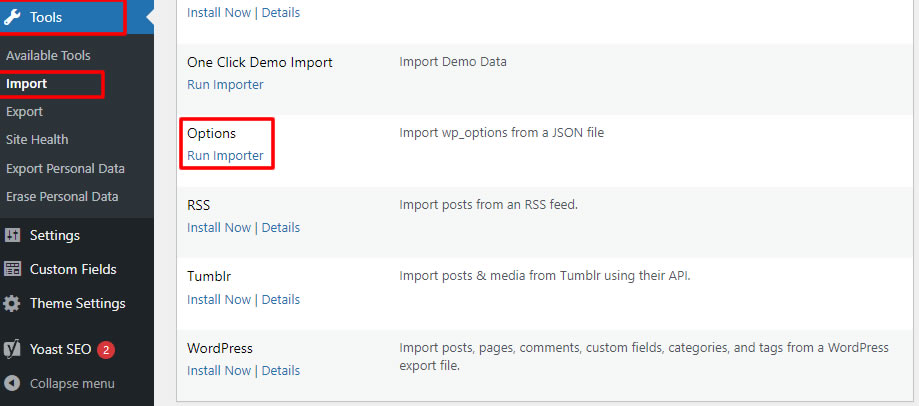
Download this file as in the picture and complete the demo. If you do not transfer this options.json file, your theme settings will not come and your site will not work correctly. So upload the file as in the image below.
Theme Options
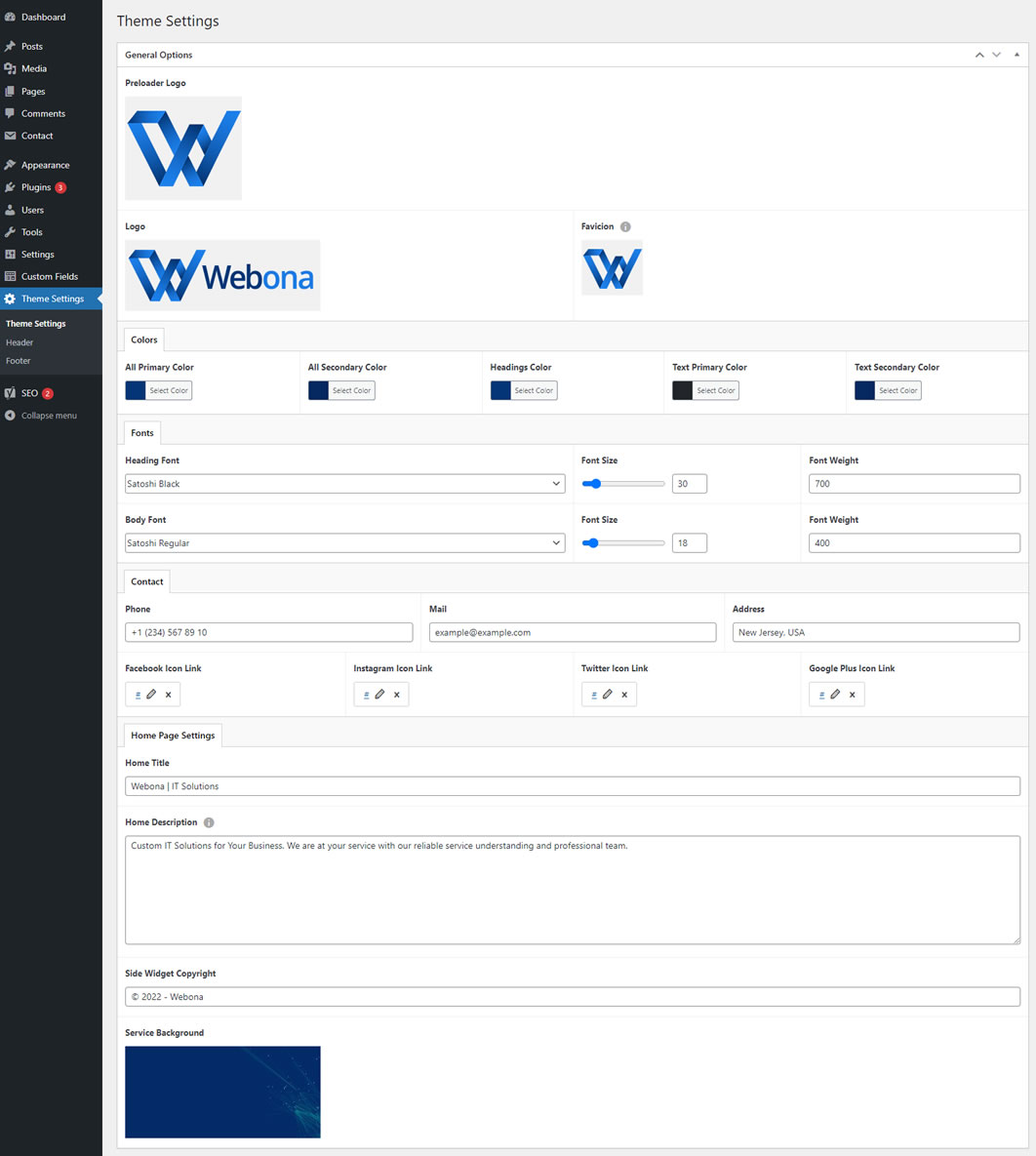
- Click on Theme Options field from your wp-admin panel. Here we have added areas where you can edit your Logo, Preloader, Favicion, Color settings, Font settings, Contact Information, Social Media and Homepage Information. Edit it for yourself.
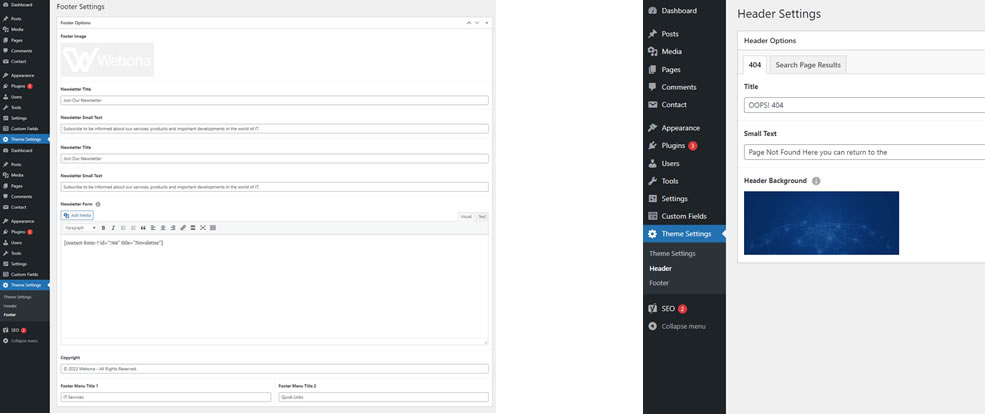
- We added header and footer fields in the sub-tabs of the theme settings. Here you will see 404 page, Search page, footer settings, Copyright and Newsletter field. Fill it yourself.
Forms
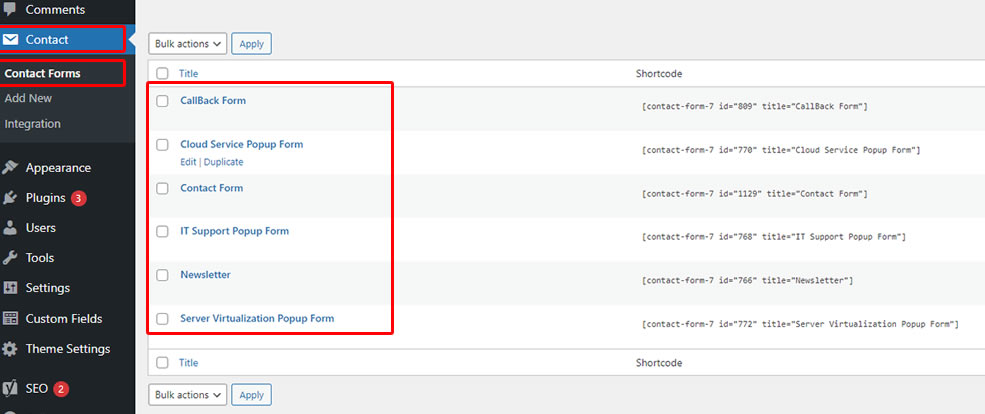
- All forms are created with the Contact Form 7 Plugin.
- All popup, contact, callback forms come from here. Edit it for yourself.
Page Setup and Layout
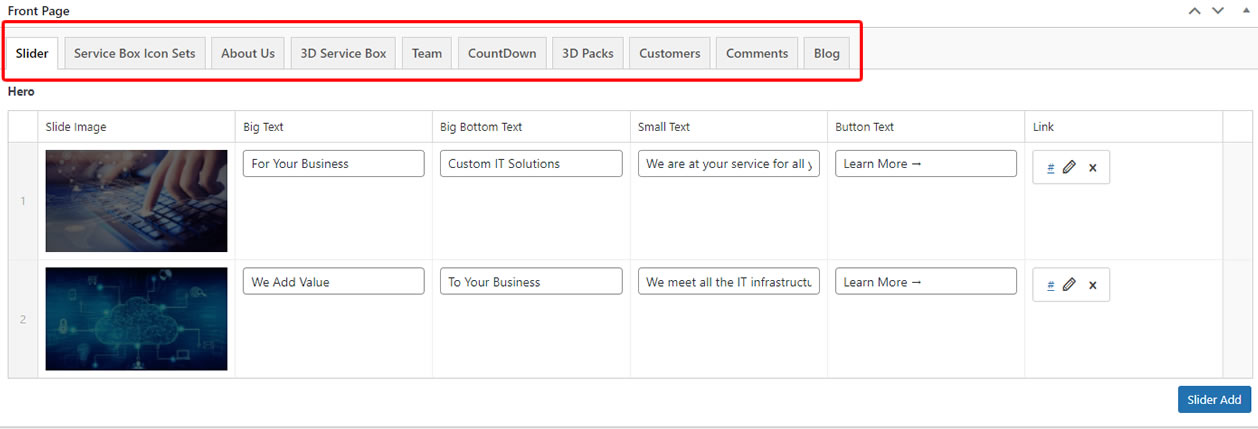
- The page structure is integrated according to the ACF code system. You can add unlimited content. In total, 7 special pages were created. You can see the structures in tabs at the bottom of each page. Change it for yourself.
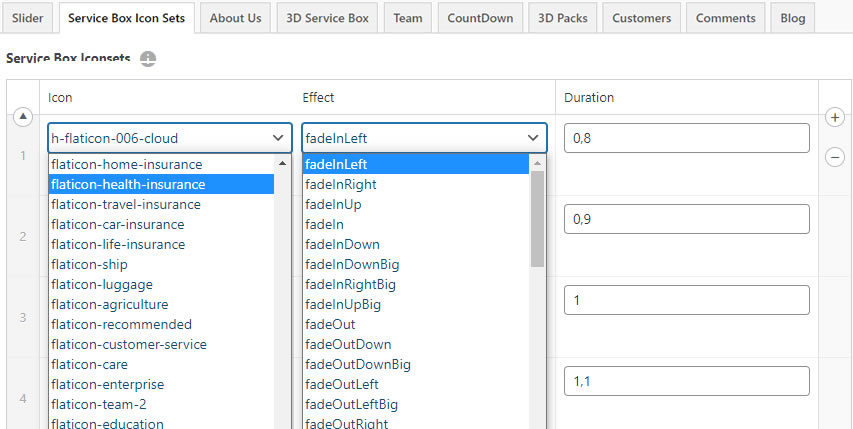
- 230 Special icon sets and 80 special effects have been added. Apply it yourself.
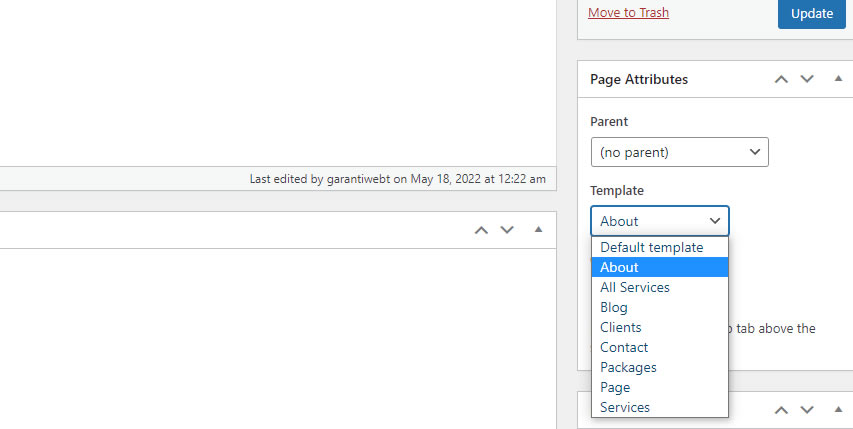
- If you want to create a new page, select the template you want on the right and apply it according to you. And create professional pages. All you have to do is fill in the fields after choosing the theme.
Menu Structure
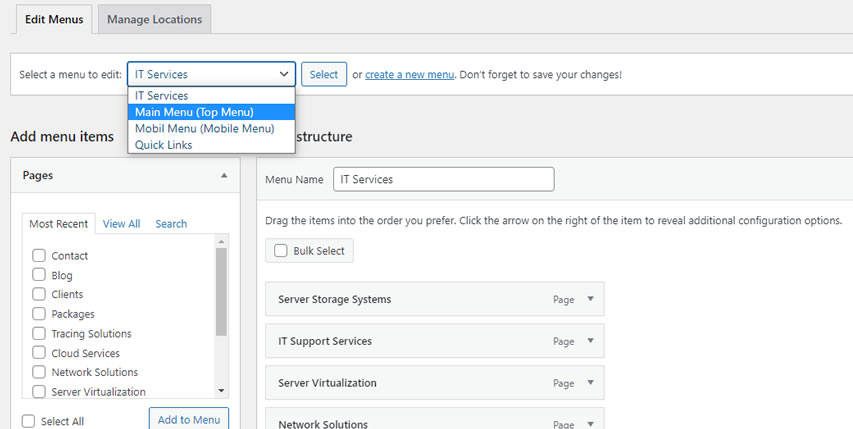
- We created a binary menu structure. So you can show different menus on mobile different desktop.
- All you have to do is add your pages to the menus.